{{text}}
Share
Adding a video in the background on Webflow instantly boosts a landing page or a strategic section of your site, without complexity thanks to the integrated “Background Video” element. This feature automatically launches a muted and looping video sequence, providing an immersive setting upon first load without distracting the user's attention.
Prerequisites: What you need before you start
Above all, create a quiet, well-lit work environment so you can stay focused. Get a computer connected to the Internet, the Webflow account (or the software mentioned), and tools to take notes, such as a notepad and a pen. Write down your credentials in a safe place to avoid wasting time.
Then, set a clear objective for your project: what result do you want to achieve? Having a defined goal will help you stay motivated and measure your progress. Plan sessions of 30 to 60 minutes, including short breaks, during the times of the day when you are most effective.
Choosing the right video format
The format influences compatibility, visual quality, and loading speed. Webflow mainly accepts MP4 (H.264), WebM and MOV:
- MP4 (H.264): the most universal, compatible almost everywhere.
- WebM: efficient compression and good quality, but less supported on some older browsers.
- MOV: high resolution, but large file that often requires additional compression.
Always compress your video before importing: aim for 720p to 1080p, adjust the bitrate to find the best quality/weight balance, and use tools like HandBrake or specialized online services. If your project includes a lot of videos, consider external hosting to avoid burdening your Webflow quotas. For personalized advice and tailor-made support, a Webflow Paris agency can guide you effectively.
Step 1: Prepare your video
The first mission consists in adjusting the resolution (Full HD 1920×1080 or 1080×1920 portrait) and the format (16:9 or 9:16 ratio depending on the use). Choose a modern codec (H.264 or HEVC/H.265) and a bit rate adapted to the content: high for scenes rich in detail, low for animations or simple shots. Avoid re-encoding multiple times to avoid degrading the quality.
To prepare, use software like Adobe Premiere Pro, DaVinci Resolve, or Final Cut Pro, or free tools like HandBrake. These solutions offer presets optimized for the web and facilitate export in the desired format. If you are just starting out, a free webflow training can help you master these basics.
Step 2: Import your video into Webflow
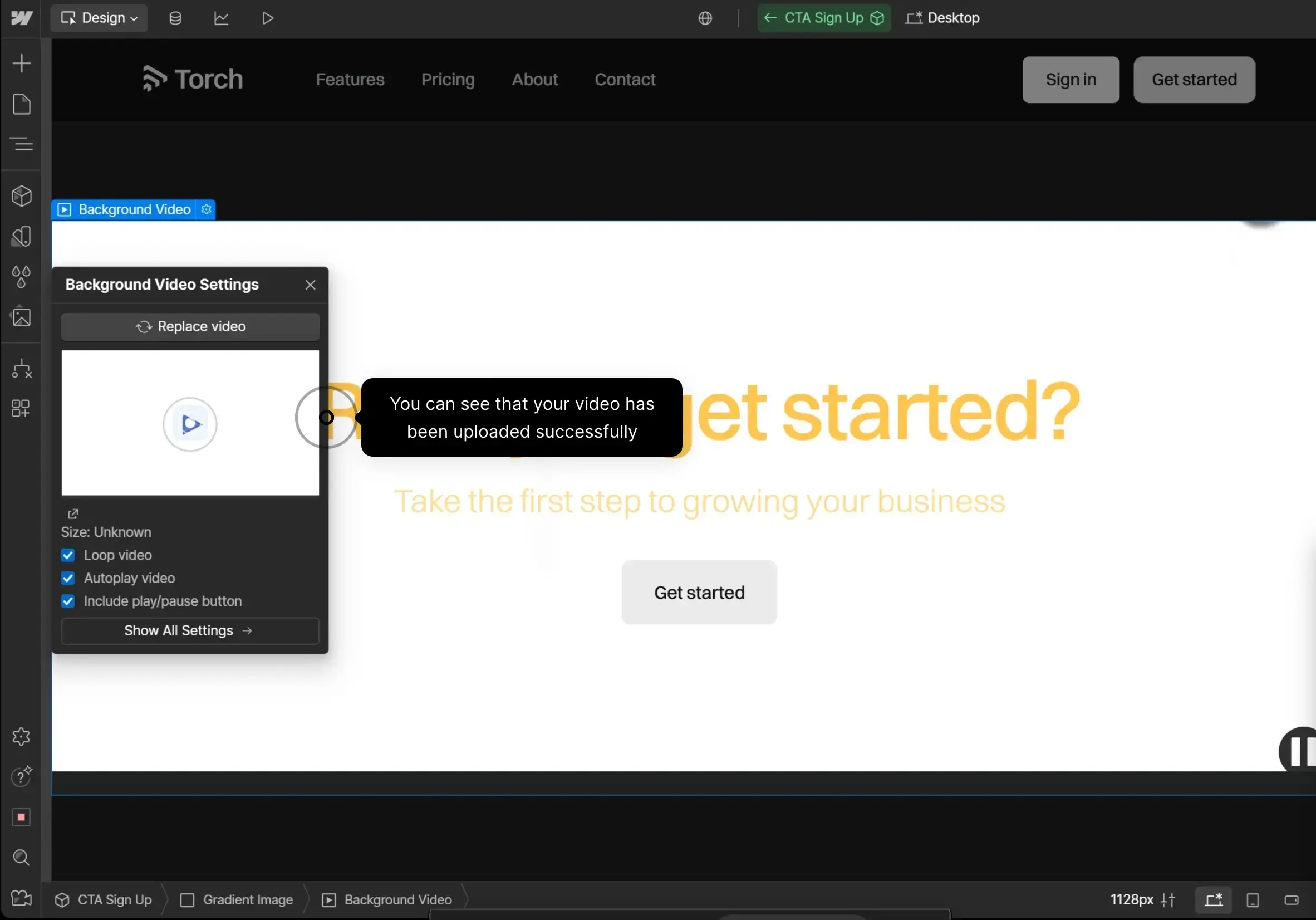
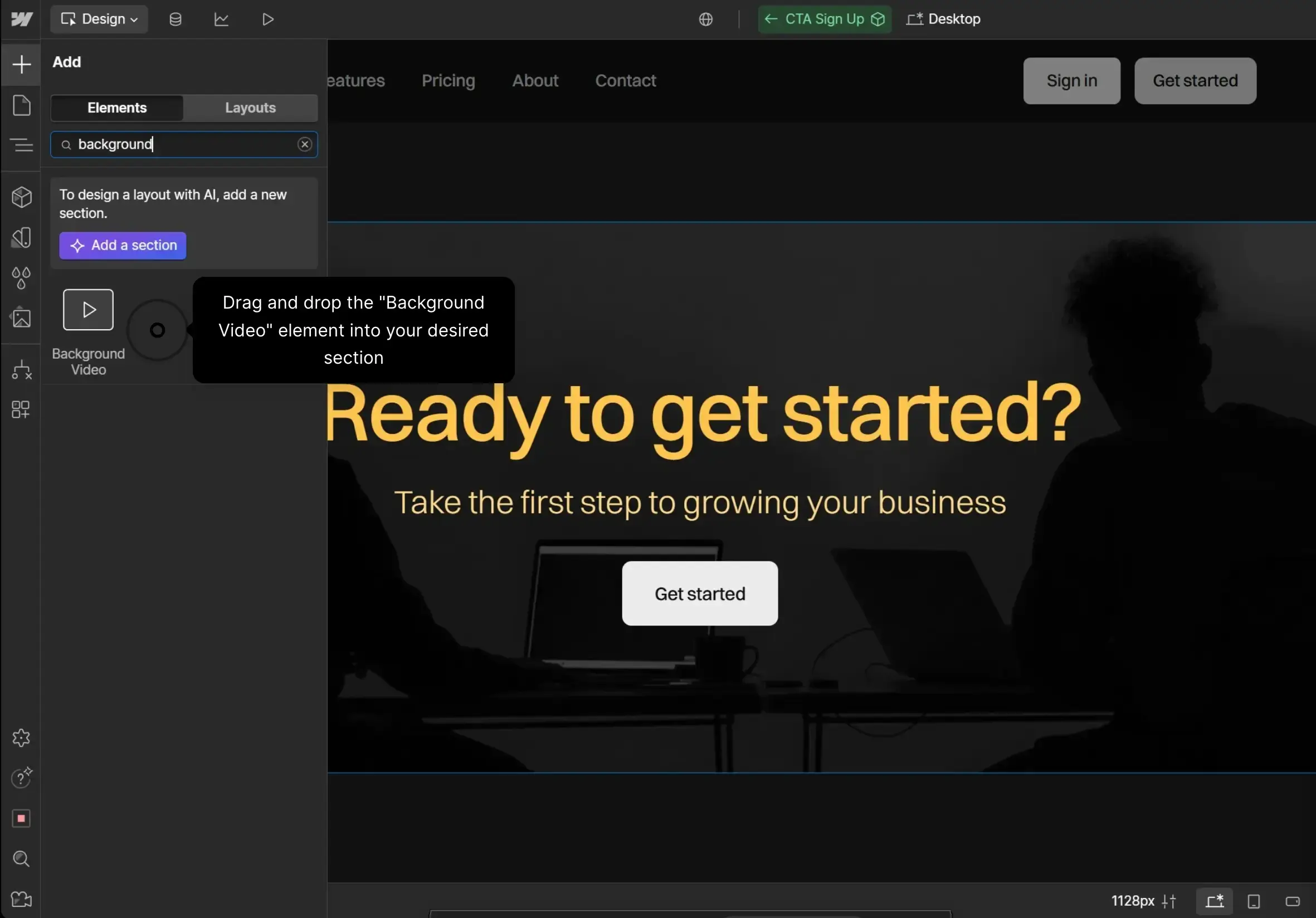
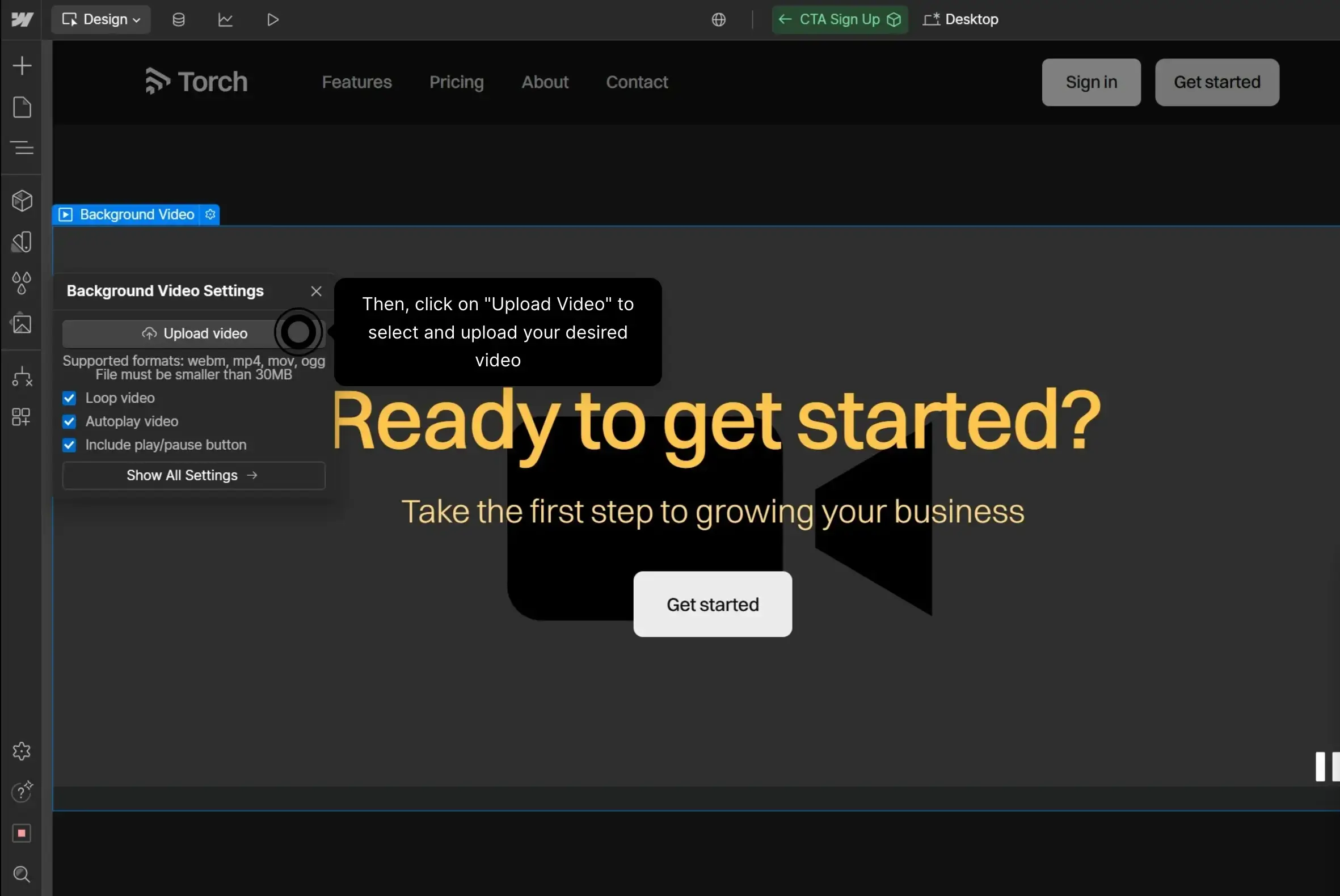
Open the Webflow editor, add the “Background Video” element (or turn an existing div into a video via “Edit Tag → Video”). In the “Settings” panel, select “Upload” to import your MP4 or WebM file, or fill in the URL of a video hosted on an external service.
Once imported, your video is ready to be styled: control the width/height (100% for a background covering the entire section) and set the playback options in the “Style” tab (autoplay, loop, muted).
Step 3: Set up the display
Positioning and coverage
In the Style panel, set Background Size on “Cover” for the video to completely fill the area, and Background Position on “Center Center” to keep the topic in the center. Test on desktop and mobile to ensure a balanced result.
Autoplay and loop
Activate Autoplay to start the video as soon as you arrive in the section, and Loop for uninterrupted reading. Be careful not to overload the page with several simultaneous videos.
Son
Most video backgrounds should be kept quiet. Check “Muted” to turn off the sound. If you want to keep the audio, plan a volume control and check for mobile compatibility (autoplay without interaction is generally only allowed in mute).
Step 4: Optimize performance
Fast loading
Compress your images (WebP or AVIF formats), enable caching, minify your HTML, CSS, and JavaScript files and use Lazy loading to defer the loading of off-screen media. This significantly reduces initial load time and improves Largest Contentful Paint (LCP).
Mobile replacement images
Serve lighter versions for mobile (640—768 px wide) via srcset or <picture>. Use SVG for icons and illustrations to stay clean and light.
Step 5: Test and Deploy
Cross-device and browser testing
Test on Chrome, Firefox, Safari, Edge, and on multiple screens. Check the readability of the text, the responsiveness of the menus and the correct execution of the scripts. Use browser tools to simulate different resolutions.
Problem solving
Note and fix compatibility, display, or performance issues (heavy images, scripts that are too heavy). Make sure all links, forms, and error messages are working properly.
Online and follow-up
Publish your site on your hosting or via Webflow and check the absence of 404/500 errors. Install an analysis tool (Google Analytics, etc.) to track traffic, time spent, and most visited pages, and adjust your content regularly.
Tips for a captivating video background
Choose a sequence that subtly illustrates your message: calm and repetitive shots, an atmosphere consistent with your visual identity. Avoid movements that are too fast that fatigue the eye.
Test multiple versions and analyze bounce rates and time spent on the page to select the one that generates the best engagement.
FAQ: Background video on Webflow
How do I activate autoplay for a background video on Webflow?
In the Background Video item settings, check “Autoplay” and “Loop”, then activate “Muted” to ensure mobile compatibility. This option is indispensable : most of navigators Modern ones block the automatic play of videos with sound to protect the user experience on your Web page.
Publish and test systematically live on your website, because the overview of CMS Webflow does not always show the autoplay correctly. Check the behavior on the Mobile version of your site using the development tools of your browser. If autoplay still does not work, inspect the HTML code generated: the tag video must contain autoplay, muted, loop, and playsinline attributes.
Some hosters or configurations of web server can block video streaming; make sure that the MIME types are declared correctly. As a last resort, a small script JavaScript can force reading when loading Web page. Les developers Experienced users can also add an intersection viewer to only start playing when the video enters the viewport, improving the performance of loading pages.
What video formats and what size do you need to load quickly?
The choice of format and compression is crucial for the speed ofDisplay of the site and the experience on all web pages. Choose MP4 in H.264 codec for universal compatibility with all navigators, including older versions ofInternet Explorer, or WebM for better compression on navigators modern. For replacement images on mobile, the format JPEG remains the reference in terms of lightness.
For the web, aim 720 pixels height on desktop and 480 pixels on mobile. It is useless to exceed these resolutions for a background: the visitors of your website won't notice the difference, and the gain in file size is considerable. Use HandBrake or FFmpeg to compress your files, set a constant bitrate lower than 1 Mb/s, limit the duration to 30 seconds to 1 minute, delete the audio track if possible to further reduce the weight, and hold your files between 1 and 5 MB.
FFmpeg's faststart option moves the metadata to the beginning of the file, allowing almost instantaneous playback to start on Internet pages — a key asset for the conversion rate. Les search engines as Google integrates loading speed as a ranking factor in search results. On a site e-commerce, every additional second of latency can cause the conversion rate from several points. Compress Your videos is therefore not just a technical question: it is a direct business lever for my site as for yours.
Finally, to choose between Webflow and WordPress, assess your needs for customization, development and content management. WordPress, built in PHP, offers a massive ecosystem of plugins And ofextensions to manage media, while Webflow, as CMS visual, simplifies the shaping without manipulating the languages of programming.
How do you make a background video responsive?
The aim is to guarantee a Display of the site optimal on all screens, from large desktop monitors to Mobile version. Apply the object-fit cover and width/height properties to 100% on the video element so that it fills its container without deformation, regardless of the number of pixels available on the user's screen.
For mobile screens under 768 pixels In width, suggest an image JPEG replacement or a lighter video file via media queries. This strategy avoids unnecessarily downloading a large file on mobile, which weighs directly on the loading pages and the user experience on your Internet-pages. Les developers wishing to go further can dynamically load the right video source according to the screen size via a script dedicated, thus avoiding unnecessary downloads on pages on your site.
Test on real devices, not just in the browser desktop in responsive mode. Les polices superimposed on the video should also fit (use relative units like VW or the clamp function). Verify that your hoster supports the necessary speed in case of significant simultaneous traffic on pages of the site.
How do I superimpose text or a logo on a background video?
Add a div inside the Background Video, name it “overlay,” set it to 100% width and height, and apply a semi-transparent background color, such as black with 50% opacity, to improve the contrast between your content and the video. Then place your content centered with Display Flex, combining justify-content center and align-items center for perfect centering on the Web page.
For creative variants, a transparent to black gradient at the bottom of the image is ideal for sites e-commerce wanting to highlight a product, while a semi-transparent brand color shade is perfect for pages on your site SaaS or startup oriented. On your homepage, the overlay transforms a simple video into a real immersive showcase.
Regarding accessibility, ensure a sufficient contrast ratio between the text and the overlay: polices white on a dark background at 50% opacity generally offer contrast in accordance with WCAG standards. From an SEO perspective, the text in the overlay is indexed by search engines, unlike the content embedded in the video itself. Structure it with the right ones tags semantics to maximize your visibility in search results and attract more visitors to your website.
On WordPress, if you prefer not to touch the HTML code, of plugins and extensions offer overlays that can be configured directly from the administration interface. One PHP developer will also be able to create reusable components on all web pages of your project. On Webflow, the overlay div can be configured entirely without script, directly via the CMS visual — one of the decisive advantages for create a site quickly without mastering the languages Side programming web server.
Synqro's latest achievement