{{text}}
Share
Les Radio buttons, also called option boxes, are essential in web forms. They allow users to choose only one option among several.
Behind their simplicity, they play a crucial role in guaranteeing smooth navigation. Well configured, they improve the user experience and make forms more accessible.
But be careful! Their installation must be careful. Every detail counts for ensure good readability and offer a clear and intuitive interaction.
This article from Synqro, our Webflow agency will guide you step by step to integrate and customize radio buttons in Webflow, following the best practices to create forms interactive and Accessible.
Why use radio buttons in Webflow?
Les radio buttons are essential elements in online forms, as they allow exclusive selection. They offer an elegant and intuitive solution for presenting mutually exclusive options, while ensuring clear and structured data collection. Here is why they are essential in your Webflow projects:
Facilitate exclusive selection
Radio buttons ensure that the user can select only one answer among several choices. This is particularly useful in the following cases:
- Preference forms : Allow users to choose a language, contact method, or other exclusive preference.
- Surveys and polls : Make the answers clear and unambiguous.
- Selection of payment methods : Guarantee that only one method is chosen to avoid errors in the ordering process.
By limiting the selection to a single option, you guide the user while simplifying the user experience.
Improving the user experience
The integration of radio buttons on your Webflow site considerably improves the user experience. Here's why:
- Intuitive interface : Radio buttons are easy to understand, reducing the cognitive effort required to make a choice.
- Responsive compatibility : Their adaptive design makes them easy to use on any type of device (computers, tablets, smartphones).
- Seamless browsing : Combined with clear labels and good prioritization, they allow the user to quickly fill out forms.
Collect clear and structured data
The radio buttons allow you to limit responses to a single option, which generates consistent data and easy to analyze. This structure is particularly useful for:
- Statistical analyses : Get actionable answers without the risk of duplicates or ambiguities.
- CMS and database integration : The data from the radio buttons can easily be integrated into your content management systems or your analysis tools, such as Google Sheets or Zapier.

4 steps to add radio buttons to your Webflow site:
Integrate radio buttons in Webflow makes it possible to offer exclusive choices to users, as in forms. Here is a detailed guide to 4 steps to help you add them, customize them, and improve their accessibility on your site.
📋 Step 1: Create a Form in Webflow
Before adding radio buttons, you must first embed a form on your Webflow page.
✅ How to create a form in Webflow:
- Open it Webflow designer and go to the page where you want to add the form.
- Use the feature drag and drop To add an item Form Block from the component library.
- Customize fields of the form according to your needs:
- Add text fields, email fields, checkboxes, or other items needed to collect data.
- Once the form is added, proceed to the integration of radio buttons.
💡 Tip: Give your fields explicit names so users can easily understand what information to provide.
🔘 Step 2: Add Radio Buttons to Your Form
Radio buttons allow users to choose only one option among several. Here's how to integrate them into Webflow:
✅ Add radio buttons:
- Drag the item Radio Button Field from the Webflow component library to your form.
- Assign clear labels to each radio button so that users understand the choices available. For example:
- 🗹 Option 1: “Standard Delivery”
- 🗹 Option 2: “Express delivery”
- To group multiple radio buttons, assign them a Identical group name in the menu Settings. This ensures that only one button can be selected in each group.
✅ Set a default option:
- If required, you can set a pre-selected option to guide the user. All you have to do is check the desired option in the Designer.
💡 Tip: Use descriptive labels that provide clarity and avoid user confusion.
🎨 Step 3: Customize the Style of the Radio Buttons
To make your radio buttons fit perfectly into the design of your site, you can customize their style via the style panel or by using custom code.
✅ Customization in Webflow:
- Use the Style Panel in Webflow to adjust:
- La color circles and labels.
- La waistline radio buttons.
- La typography texts associated with the buttons.
- Apply interactions and animations to make the user experience more fluid and engaging.
✅ Step 4: Test the Operation of the Radio Buttons
Before publishing your site, make sure your radio buttons are working properly.
📋 Test checklist:
- Preview the page in the Webflow Designer to verify that:
- Only one button can be selected from each group.
- The styles applied are consistent with the overall design.
- Test keyboard navigation to verify that users can move from one button to the other with the key Tab.
- Check readability labels on different browsers and devices (desktop, mobile, tablet).
Advanced customization of radio buttons in Webflow
Use custom code for unique styles
For advanced customizations, you can add custom code in Webflow. This makes it possible to integrate:
- Dynamic icons next to the radio buttons.
- Animated transitions to make the selection more engaging.
- Dynamic style changes depending on the status (checked or not). JavaScript example:
javascript
Copy code
document.querySelectorAll ('input [type="radio "] ') .forEach (button => { button.addEventListener ('change', function () { this.parentElement.classList.add ('is-checked'); });});
Adapting radio button design to branding
Make sure that your radio buttons fit perfectly into the visual identity of your site. Here are a few tips:
- Change the color palette to reflect your branding.
- Adopt consistent labels with the typography of your site.
- Use pre-designed components like those offered by Input Flow, which speed up personalization.
♿ Tips to improve the accessibility of radio buttons
Accessibility is a priority in the design of modern websites. Here are some best practices for making your radio buttons accessible to everyone:
✅ Combine explicit labels:
Each button should be linked to a <label> via the attribute For to make it easy for users to understand the options offered.
✅ Use ARIA attributes:
Add attributes Aria-Checked to transmit the status of the button to screen readers.
✅ Test keyboard navigation:
Users should be able to navigate between radio buttons using the Tab key and validate their choice with the Enter key.
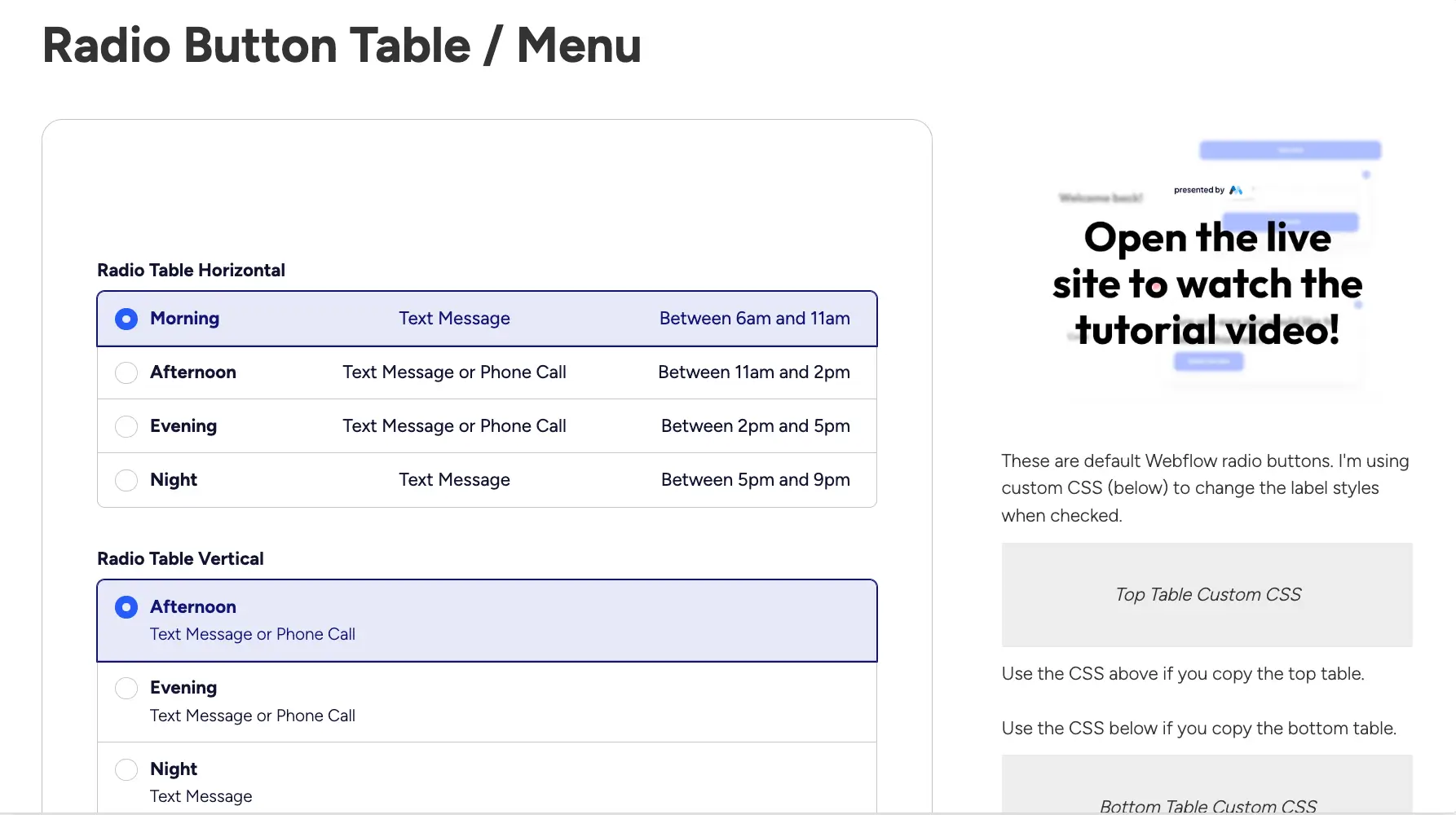
Example of a Radio Button Downloadable on the Webflow platform
Conclusion on Radio buttons in Webflow
Radio buttons are essential elements for creating interactive and intuitive forms in Webflow. By following the steps outlined, you can:
- Integrate radio buttons easily.
- Personalize their design to reflect your visual identity.
- Ensuring their accessibility for all users.
To go further, our Webflow agency, Synqro, specialized in the design of sites optimized for UX and SEO, is there to support you. Whether it's for complex projects or tailor-made solutions, we help you turn your ideas into engaging digital experiences.
Take action! With the right tools and expert support, you are in a position to create forms that improve the user experience while collecting quality data.
FAQ: All you need to know about radio buttons in Webflow
🔎 1. What is a radio button in Webflow?
One Radio Button Is a interactive input field that allows a user to check only one option among several available in a form. Contrary to a checkbox, it limits the choice to only one selection per group.
In Webflow, you can style these buttons with built-in tools or add JavaScript scripts, of CSS, and HTML code to further personalize appearance and behavior.
✅ 2. Why use radio buttons in a Webflow form?
Les Radio buttons are particularly useful for forms where an exclusive choice is required:
- Ease of use : They offer a intuitive interface allowing users to make a quick choice with a simple Click.
- Data structure : The options selected are easy to treat and to analyze once the form is submitted.
- Customizable design : Use the style panel Webflow, of wordings personalized or HTML code to adapt the appearance of the buttons to your graphic charter.
- Responsive optimization : The radio buttons adapt easily to different screen sizes for a layout responsive.
🎨 3. How do I customize radio buttons in Webflow?
📌 Basic options:
You can adjust the color, the waistline, the curbs, and the wordings radio buttons directly in the Webflow style panel.
Advanced customization with CSS:
To go further, you can use this CSS code In the integration panel from Webflow:
css
Copy code:
input [type="radio "] {
  appearance: none;
  width: 20px;
  height: 20px;
  border: 2px solid #000;
  border-radius: 50%;
  display: inline-block;
  cursor: pointer;
}

input [type="radio "] :checked {
  background-color: #ff6600;
}
💻 Adding JavaScript scripts for dynamic interactions:
You can also add more complex interactions via JavaScript.
Example script to show an alert when the user selects an option:
javascript
Copy code:
document.querySelectorAll ('input [type="radio "] ') .forEach (button => {
  button.addEventListener ('change', function () {
  alert (`You selected: $ {this.value} `);
  });
});
✅ 4. Are radio buttons optimized for SEO?
Indirectly, yes. Although the Radio buttons are not a factor in Technical SEO, they contribute to:
- Reducing the bounce rate : Well-designed forms keep users on the page longer.
- Improving the user experience : Users appreciate the interfaces Intuitive and Coherent.
- Structuring data for third-party integrations: Choices are easily exploitable by tools like Zapier or HubSpot.
♿ 5. How to improve the accessibility of radio buttons?
THEweb accessibility is a priority to ensure that all users, including those with handicaps, can interact with your form.
📌 Tips for making your radio buttons accessible:
- Combine text labels at each button via the tag
<label>. This allows screen readers to understand the choices available. - Add ARIA attributes, like
Aria-Checked, to indicate the status of the button. - Check the contrasts between the radio button and the background for visually impaired users.
- Test keyboard navigation : Users should be able to navigate between buttons with the key Tab and select them with Entree.
🎥 6. Can we animate radio buttons in Webflow?
Yes, Webflow allows you to add interactions And animations to the radio buttons.
Example of a simple interaction:
Add a CSS transition for the button to change color when checked:
css
Copy code:
input [type="radio "] :checked {
  background-color: #3498db;
  transform: scale (1.1);
  transition: all 0.3s ease;
}
You can also use Webflow animations to add advanced visual effects when scrolls Or of Click on a button.
🔧 7. What are the advantages of a personalized radio button design?
One custom design Strengthen the visual coherence of your site and improves the user experience.
📋 Advantages of a unique design:
- Consistency with your branding : Change colors, fonts, and sizes to integrate buttons into your fitness.
- Better readability : Clear and well-placed buttons help users make quick choices.
- Engaging experience : An aesthetic design makes it easier for users to fill out your forms.
💡 8. Radio buttons or pull-down menus: what to choose?
The choice between the Radio buttons And the pull-down menus depends on the context:
- Radio buttons : Use these if you want to show all options directly on the page.
- Dropdown menus (dropdown) : Ideal for long lists that need to be compressed to save space.
🔗 9. Can radio buttons be used in Webflow's CMS Collections?
No, Webflow does not offer native radio buttons In the CMS Collections. However, you can get around this limitation by using 3rd party integrations suchlike Zapier, Make (Integromat), or by adding JavaScript customized to synchronize selections with a external database.
📚 10. Are radio buttons compatible with third party integrations?
Yes, radio buttons work with tools like:
- Zapier
- Mailchimp
- HubSpot
- Airtable
Make sure that the button data Are properly mapped for the integration to work without errors.
🔧 11. Can we add scripts to enrich the functioning of radio buttons?
Yes, you can enrich your Radio buttons With JavaScript scripts to add advanced features like:
- Real-time validation
- Dynamic content change according to the user's choice
Example:
javascript
Copy code:
document.querySelectorAll ('input [type="radio "] ') .forEach (button => {
  button.addEventListener ('change', function () {
  console.log (`You selected: $ {this.value} `);
  });
});
🚀 12. What are the best use cases for radio buttons?
Les Radio buttons are particularly suitable for:
- Feedback forms
- Survey pages
- Order forms (choice of sizes, colors, etc.)
- User account settings
13. How do I customize the appearance of radio buttons in Webflow?
To customize the appearance of radio buttons in Webflow, you can use tags Custom CSS. Access theDeveloper tab In the tape of the interface, then insert your CSS styles into the appropriate section. This will allow you to change things like the color, size, or shape of the radio buttons. Be sure to test the changes across browsers to ensure a consistent user experience.
14. Is it possible to use jQuery plugins to improve the functionality of radio buttons in Webflow?
Yes, it is possible to use plugins jQuery to extend the functionality of radio buttons in Webflow. To do this, go to theDeveloper tab and insert the required jQuery code into the custom scripts section. This can allow you to add advanced interactions, like dropdown lists or conditional behaviors. However, make sure that using jQuery does not affect site performance and is compatible with other interactive elements.
Synqro's latest achievement