{{text}}
Share
In the digital marketing ecosystem, the ability to collect data accurate and usable is a key competitive advantage. However, many companies are still struggling to properly implement their tracking codes and to effectively manage their tracking beacons without systematically mobilizing their technical teams.
Chez Synqro, Webflow agency specialized in the creation of efficient and conversion-oriented websites, we support companies on a daily basis in optimizing their technical stack. Our expertise in integration and Tracking positions us as a privileged partner to demystify the essential tools of web analytics. If you're looking to regain control of your data without constantly relying on developers, this complete guide is designed for you.
Google Tag Manager represents today the reference solution for centralizing and deploying all your marketing tags. Ce tag management system free, developed by Google, is revolutionizing the way in which marketing teams interact with their website. No more constant back and forth with the technical team for each new integration.
This guide will take you through:
- A thorough understanding of how the GTM
- The specific steps for configure Your first container
- Best practices for creating and managing your tags
- Integration with Google Analytics 4 and Google Ads
- Advanced techniques to optimize your Tag management
What is Google Tag Manager and why should you adopt it
Definition and fundamental principles
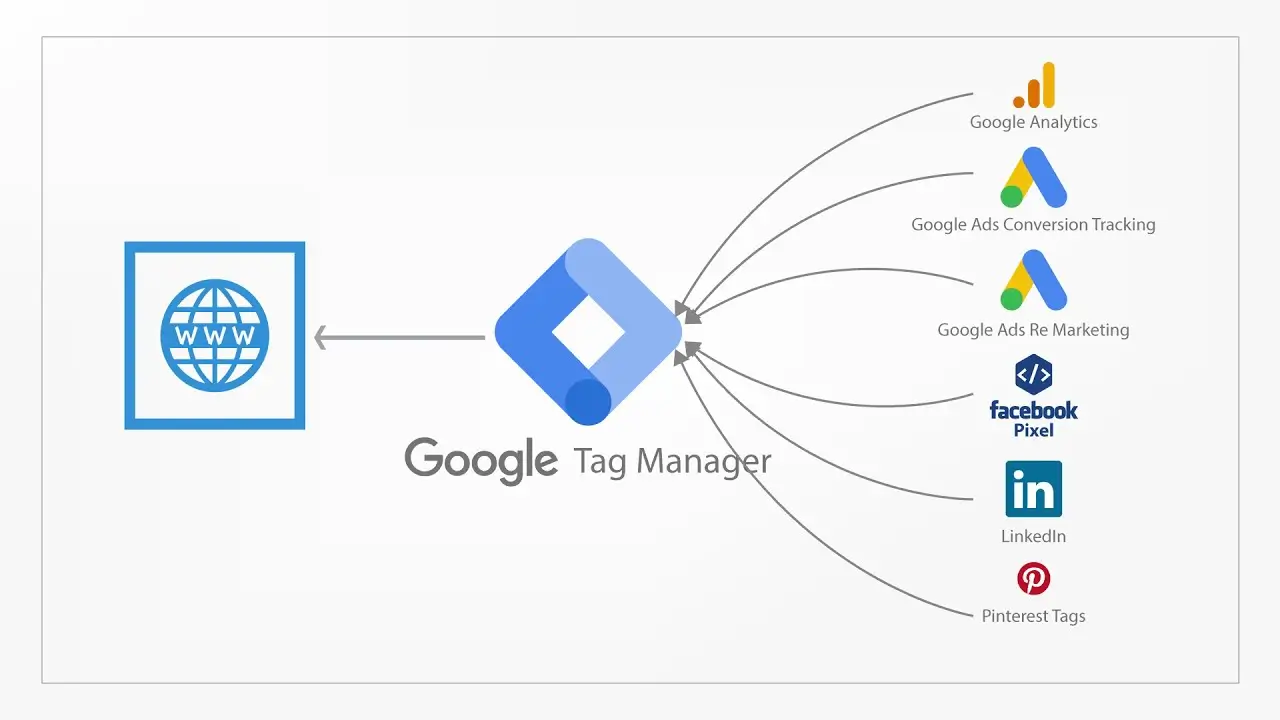
Google Tag Manager Is a free tool offered by Google which allows you to manage all of Tags and scripts found on your website or mobile application. Concretely, this tag manager acts as an intermediary between your site and the various measurement tools you want to deploy.
The principle is elegant in its simplicity: instead of manually entering each script directly in the source code of your site, you install a single code snippet. Ce Google Tag Manager container then becomes the central point from which you can add, edit the settings or delete all your tags without touching the code.
Tag Manager is a system which is based on three essential components:
- Les tags : code snippets that send information to platforms Third-parties
- Les triggers : conditions that determine when a tag must be activated
- Les variables : dynamic values used by tags and triggers
Strategic advantages for your business
The adoption of GTM generates tangible benefits for all stakeholders. Tag Manager is a tool that radically transforms the workflow between marketing and development.
Google Tag Manager makes it easy in particular:
- THEautonomy marketing teams to quickly deploy new measures
- La reduction of deadlines between the decision to implement a follow-up and its launch
- La centralization ofthe tag management In a ui unique and intuitive
- The version control with the possibility of going back on the changes made
- The debugging simplified thanks to the integrated preview mode
The impact on the speed of your projects is considerable. Where the addition of a tag previously required several days of coordination, Use Google Tag Manager reduces this delay to a few minutes.
How to set up Google Tag Manager on your site
Create an account and a container
The first step is to create an account Google Tag Manager See you on tagmanager.google.com and connect with your Google account. THEui will guide you through the initial setup process.
During creation, you will need to define:
- The account name : usually the name of your business
- The container name : corresponds to your website or Mobile app
- La target platform : web, iOS, Android or AMP
One Google account only can host multiple accounts and containers, which is particularly useful for agencies or multi-site businesses. This flexible architecture allows managing your tags adapted to each context.
Install the code on your website
Once your container created, GTM generates two snippets of GTM code to be integrated into your site. The first should be placed as high as possible in the section. <head>, after opening the beacon. The second is inserted immediately After the beacon <body>.
For a Webflow site, the integration is carried out via the project parameters:
- Access the Custom Code in the site settings
- Paste the first script in the Head Code section
- Add the second one in the Body Code section
This single installation is enough to connect Tag Manager to your site. From now on, any changes will be made directly from theGoogle Tag Manager interface, without changing the code source again.
.webp)
Create and manage your tags effectively
The different types of beacons available
Google Tag Manager offers an extensive library of tag templates predefined ones that greatly simplify current integrations. You can benefit from tag templates native people or explore the Community Template Gallery for more specific solutions.
The main categories include:
- Google tags : Analytics, Ads, Optimize, Surveys
- Third-party tags : Facebook Pixel, LinkedIn Insight, Hotjar
- Custom tags : custom HTML, images, JavaScript
To create a new tag, select the tag type appropriate in the gallery. Tag Manager offers Guided configurations for the most common integrations like Google Analytics or Google Ads.
Configure triggers and variables
The triggers determine the conditions for activating your beacons. Each trigger responds to a specific event on your site: loading of page, Click on an item, form submission, or custom event.
Key trigger types:
- Page view : activation at loading of a specific page
- Click : detection of clicks on links or elements
- Visibility : when an element becomes visible on the screen
- Personalized event : for complex interactions
Les variables enrich your tags with dynamic data. One variable can capture the page URL, the clicked text, or any value present in the dataLayer. This functionality Allows you to personalize finely the behavior of your tags on your site.
Integrate Google Analytics 4 with GTM
.webp)
GA4 beacon configuration
The integration of Google Analytics 4 via GTM represents the method recommended by Google to benefit from maximum flexibility. Tag Manager allows you to deploy GA4 while maintaining granular control over the events transmitted.
To configure GA4, create a tag such as “Google Analytics: GA4 Configuration”. Enter your measurement ID (format G-XXXXXXXXXX) and define a trigger on all pages. This basic configuration is sufficient for collect data from your site standard.
The key steps:
- Get the measurement ID from your GA4 property
- Create a variable constant containing this ID to facilitate maintenance
- Configure the GA4 configuration tag
- Associate a trigger “All Pages”
Track custom conversions and events
Google Tag Manager can considerably enrich the data transmitted to Analytics. Beyond the Google tracking Standard analytics, you can trace The conversions and business events specific to your business.
For custom events, use the “Google Analytics: GA4 Event” tags. These tags build on the main configuration and transmit additional data during specific interactions.
Examples of relevant events to set up:
- Download resources (PDF, guides)
- Enrollment Newsletter
- Interaction with key elements (videos, calculators)
- Scroll depth to measure engagement
This granularity in tracking allows you to feed your analyses with data truly actionable.
Optimize your Google Ads campaigns via GTM
The tracking Of conversions advertising is a major use case of GTM. Integration with Google Ads allows you to precisely measure the return on investment of your campaigns and to optimize your bids thanks to conversion data.
GTM maybe set to deliver conversion events to your ad account. This centralized approach avoids the multiplication of scripts and guarantees consistency in measurement.
Recommended configuration:
- Create a “Google Ads Conversion Tracking” tag
- Enter the conversion ID and label provided by Google Ads
- Define the trigger appropriate (confirmation page, event)
- Activate dynamic remarketing if relevant
The benefits of this integration:
- Precise attribution from conversions to campaigns
- Automatic optimization Auctions by Google
- Creating audiences enhanced remarketing
- Unified measurement between Analytics and Ads
Advanced use cases and best practices
Deploy GTM on a mobile application
Google Tag Manager is not limited to websites. The platform also supports deployment on Mobile app iOS and Android via dedicated SDKs. This ability makes it possible to unify your strategy of Tag management across all of your digital channels.
For a website or application, the fundamental principles remain the same: container, tags, triggers, and variables. However, the events available differ to reflect mobile-specific interactions.
Integration on Mobile app offer:
- Tracking the screens visited
- Measuring in-app events
- Optimizing mobile acquisition campaigns
- Application conversion tracking
Customize and extend functionality
For specific needs not covered by tag templates native people, Can use custom HTML tags. This functionality allows you to insert any JavaScript or third party pixels directly from GTM.
The gallery of community models is a valuable resource. Hundreds of templates created by the community allow you to quickly integrate tools like management systems consent, A/B testing solutions or personalization platforms.
Best practices for a container optimized:
- Name clearly your tags, triggers, and variables
- Document each element with explanatory notes
- Use folders to organize items by function
- Test systematically via the preview mode before publication
- Archive the versions with relevant descriptions
Synqro: your partner for a successful GTM implementation
Chez Synqro, our expertise Webflow extends naturally to the technical ecosystem that surrounds your sites. We support our customers in the complete implementation of Google Tag Manager, from initial configuration to deployment of tags complexes.
Our approach is distinguished by:
- One native integration optimized for Webflow sites
- One educational support to empower your teams
- One comprehensive documentation of each implementation
- One responsive support for future developments
Tag Manager can seem technical at first glance, but with the right support, it becomes a considerable lever of agility for your digital marketing. Like Google Tag Manager centralizes all of your measures, the initial investment in a rigorous configuration generates lasting benefits.
.webp)
Conclusion: Take action with Google Tag Manager
Google Tag Manager allows to regain control over your data while freeing your technical teams from recurring implementation requests. Ce management system modern is an essential standard for any company that wants to effectively measure its digital presence.
The adoption of GTM represents much more than a technical choice: it is a strategic decision that positively impacts the agility of your organization and the quality of your data-driven decisions. Use Tag Manager Today, it's about equipping yourself with a scalable infrastructure ready to support your growth.
Ready to optimize your analytics stack? Contact the Synqro team for an audit of your current implementation and find out how we can help you fully exploit the potential of Google Tag Manager on your website or mobile applications.
Google Tag Manager Frequently Asked Questions
What is the difference between Google Tag Manager and Google Analytics
Google Tag Manager and Google Analytics meet complementary but distinct needs. Google Analytics is an analysis platform that collects, processes and displays traffic data on your site. Google Tag Manager, on the other hand, is a deployment tool that makes it easy to install and manage measurement scripts, including the Google Analytics script. In practice, you use GTM to install the Google Analytics tag on your site, then Analytics to consult and analyze the data collected. This distinction is fundamental because GTM can manage many other tags beyond Analytics, including advertising pixels, testing tools, or personalization solutions. The recommended approach is to consistently use GTM as a middle layer for all of your integrations, which centralizes management and simplifies long-term maintenance.
Is Google Tag Manager really free
Yes, manager is a free tool offered by Google without any functional limitations for the majority of uses. There is no paid version of GTM for standard websites. However, Google does offer Tag Manager 360, an enterprise version integrated into the Google Marketing Platform suite, which offers advanced features such as service level agreements, dedicated support, and advanced integrations with other 360 products. For the vast majority of businesses, the free version covers all tag management needs. This free service is explained by Google's strategy, which facilitates the adoption of its advertising and analytics ecosystem. By simplifying the implementation of Google tags, the company naturally encourages the use of its measurement and advertising solutions.
How to debug a tag that doesn't work
Preview mode is the primary tool for diagnosing tag issues in GTM. To activate it, click the Preview button in the GTM interface, which opens your site in a new tab with a built-in debug panel. This panel shows in real time all the tags that are triggered or not triggered for each event that occurred on the page. When a tag does not fire as expected, first check the associated trigger configuration. The debug panel shows exactly which conditions are not met. Common mistakes include filters that are too restrictive, variable names that are misspelled, or triggers that are incompatible with the targeted event. For more complex problems, browser development tools complement the diagnosis. The Network tab allows you to check that the requests are sent to the destination servers.
Do you need technical skills to use GTM
Basic use of GTM does not require programming skills. The GUI allows you to create tags, triggers, and variables without writing a single line of code for standard integrations. Predefined templates for Google Analytics, Google Ads, or the main third-party pixels guide the user through accessible configuration forms. However, technical knowledge becomes useful for advanced use cases. Understanding HTML and JavaScript makes it possible to exploit custom tags and capture complex data. Knowledge of how DataLayer works considerably enriches the tracking possibilities. For businesses without in-house technical resources, using a specialized agency for the initial setup ensures solid foundations while training marketing teams in daily management.
How many beacons can you install with GTM
Google Tag Manager has no hard limits on the number of tags that can be deployed in a container. Complex e-commerce sites can contain several dozen active tags without technical problems. The real question is about performance and maintainability. Each tag added potentially increases the loading time of your pages and the complexity of management. The best practice is to audit your container regularly to remove outdated tags and optimize the ones that remain. Prioritize quality over quantity by focusing on measures that are truly actionable. A tag that collects data that has never been analyzed represents an unnecessary burden both for technical performance and for GDPR compliance. Structure your container with clear naming conventions and folder organization to maintain readability even with a large number of tags.
Does GTM impact the performance of my site
Google Tag Manager itself has minimal impact on performance. The container script is lightweight and loaded asynchronously so as not to block the page from being displayed. The real impact comes from the tags you deploy via GTM, not from GTM itself. Each tag added requires additional resources when loaded and executed. To optimize performance, focus on specific triggers rather than triggering systematically on all pages. Use priority and sequencing options to control the order of execution. Non-essential tags can be set to load after user interaction rather than at the initial load. The preview mode allows you to analyze the execution time of each tag to identify the most demanding elements. This proactive approach ensures that analytical benefits do not come at the expense of the user experience.
Synqro's latest achievement